Password and MFA Expectations

Please read and sign below.
Access security standards for all LOJO systems and client accounts
Purpose
LOJO team members hold access to client websites, advertising accounts, customer databases, payment systems, and the Company's own infrastructure. A single compromised login can expose a client's business and LOJO's reputation. These expectations are mandatory for every team member and every account used for LOJO work.
Password Rules
Every work account gets a strong, unique password. Never reuse a password across accounts, and never reuse a personal password for work.
Use the Company-approved password manager to generate and store all work passwords. Generated passwords should be at least 16 characters. Do not store work passwords in browsers, spreadsheets, notes apps, or on paper.
Never send a password through chat, email, text, or a ClickUp task. If access must be shared, share it through the password manager's sharing feature so it stays encrypted and revocable.
Shared team logins are permitted only where a platform does not support individual seats, and each shared login must live in the password manager under Tech Ops control.
Change a password immediately if you suspect it has been exposed, and notify the Manager of Support & Tech Ops the same day.
When a team member leaves or changes roles, Tech Ops rotates every shared credential that person could access. Managers must notify Tech Ops of departures and role changes on or before the effective date.
Multi-Factor Authentication
MFA must be enabled on every Company and client account that supports it. This includes, at minimum: Google Workspace, ClickUp, GrowthGenie360 and HighLevel, Meta Business Manager, Google Ads, Cloudflare, hosting and server control panels, domain registrars, QuickBooks and financial platforms, and the password manager itself.
Use an authenticator app or hardware key as your MFA method wherever the platform allows. SMS codes are acceptable only when no stronger option exists.
Never approve an MFA prompt you did not initiate. Unexpected prompts mean someone has your password: deny the prompt, change the password, and report it immediately.
Never share an MFA code with anyone, including anyone claiming to be from LOJO management, IT, or a vendor. No legitimate person will ever ask for your code.
Store account recovery codes in the password manager entry for that account, not in email or downloads.
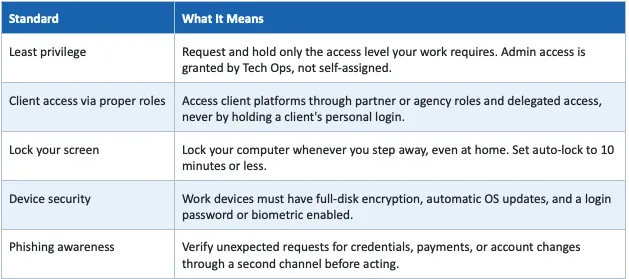
Account and Access Hygiene
Incident Reporting
Report any suspected phishing, credential exposure, account takeover, unexpected MFA prompt, or lost device to the Manager of Support & Tech Ops immediately, day or night. Minutes matter in a compromise. Reporting quickly will never be punished; hiding an incident is treated as a serious policy violation.
Acknowledgement